> ## Documentation Index
> Fetch the complete documentation index at: https://rive.app/docs/llms.txt
> Use this file to discover all available pages before exploring further.
# Timeline
export const YouTube = ({id, timestamp}) => {
const videoSrc = timestamp ? `https://www.youtube.com/embed/${id}?start=${timestamp}` : `https://www.youtube.com/embed/${id}`;
return ;
};
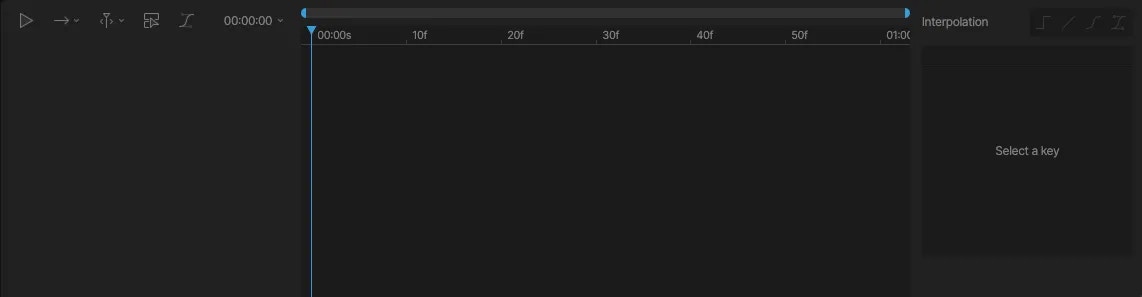
The Rive interface displays a timeline with playback controls and options for the current animation in Animate mode. A list of all animations is displayed to the left of the Timeline. Keep in mind that these are animations for the currently [active artboard](/editor/fundamentals/artboards#active-artboard).
 ## Animation type
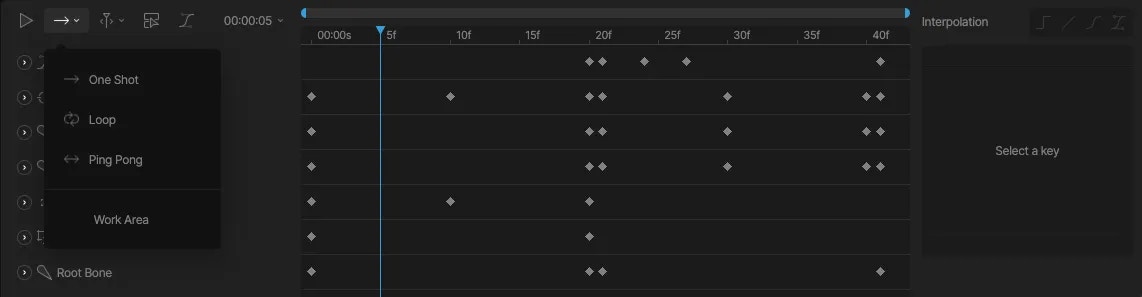 **One-Shot:** The playhead stops at the end of the animation.
**Ping-Pong:** The playhead continuously plays from the start point to the end point and back from the end point to the start point.
**Loop:** The playhead continuously loops the animation from the start point to the end point.
**Work Area:** The work area defines the playback area of an animation. Work areas are an easy way to focus on a small portion of a larger animation.
## Navigate Timeline
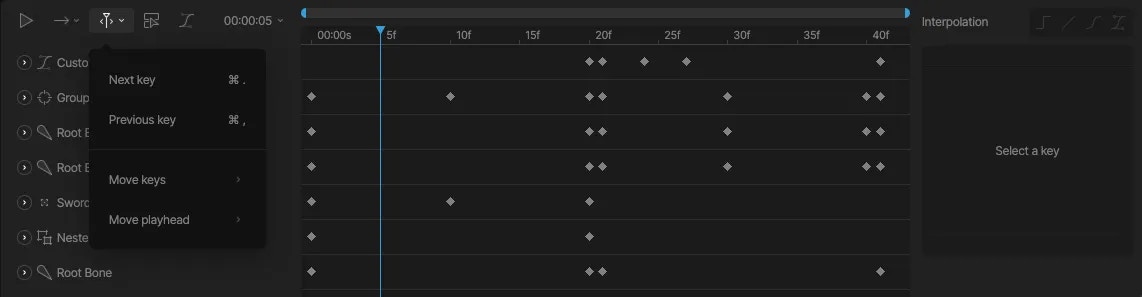
The Navigate Timeline menu gives you a list of helpful shortcuts to navigate the Timeline.
**One-Shot:** The playhead stops at the end of the animation.
**Ping-Pong:** The playhead continuously plays from the start point to the end point and back from the end point to the start point.
**Loop:** The playhead continuously loops the animation from the start point to the end point.
**Work Area:** The work area defines the playback area of an animation. Work areas are an easy way to focus on a small portion of a larger animation.
## Navigate Timeline
The Navigate Timeline menu gives you a list of helpful shortcuts to navigate the Timeline.
 ## Show Only Selected
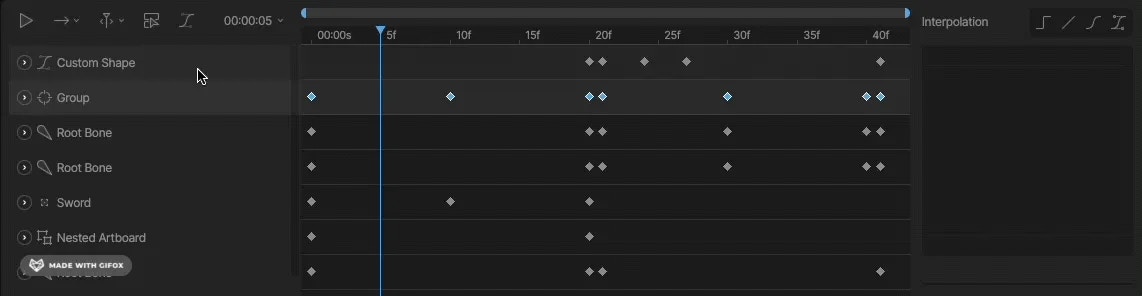
The Show Only Selected toggle can be helpful when dealing with animations with many different objects keyed. When this option is toggled on, only objects that you have selected will appear on the timeline.
## Show Only Selected
The Show Only Selected toggle can be helpful when dealing with animations with many different objects keyed. When this option is toggled on, only objects that you have selected will appear on the timeline.
 ## Timeline Options
Located to the right of the playback select, the Timeline Options show you the current time, duration, playback speed, and snap keys options.
## Timeline Options
Located to the right of the playback select, the Timeline Options show you the current time, duration, playback speed, and snap keys options.
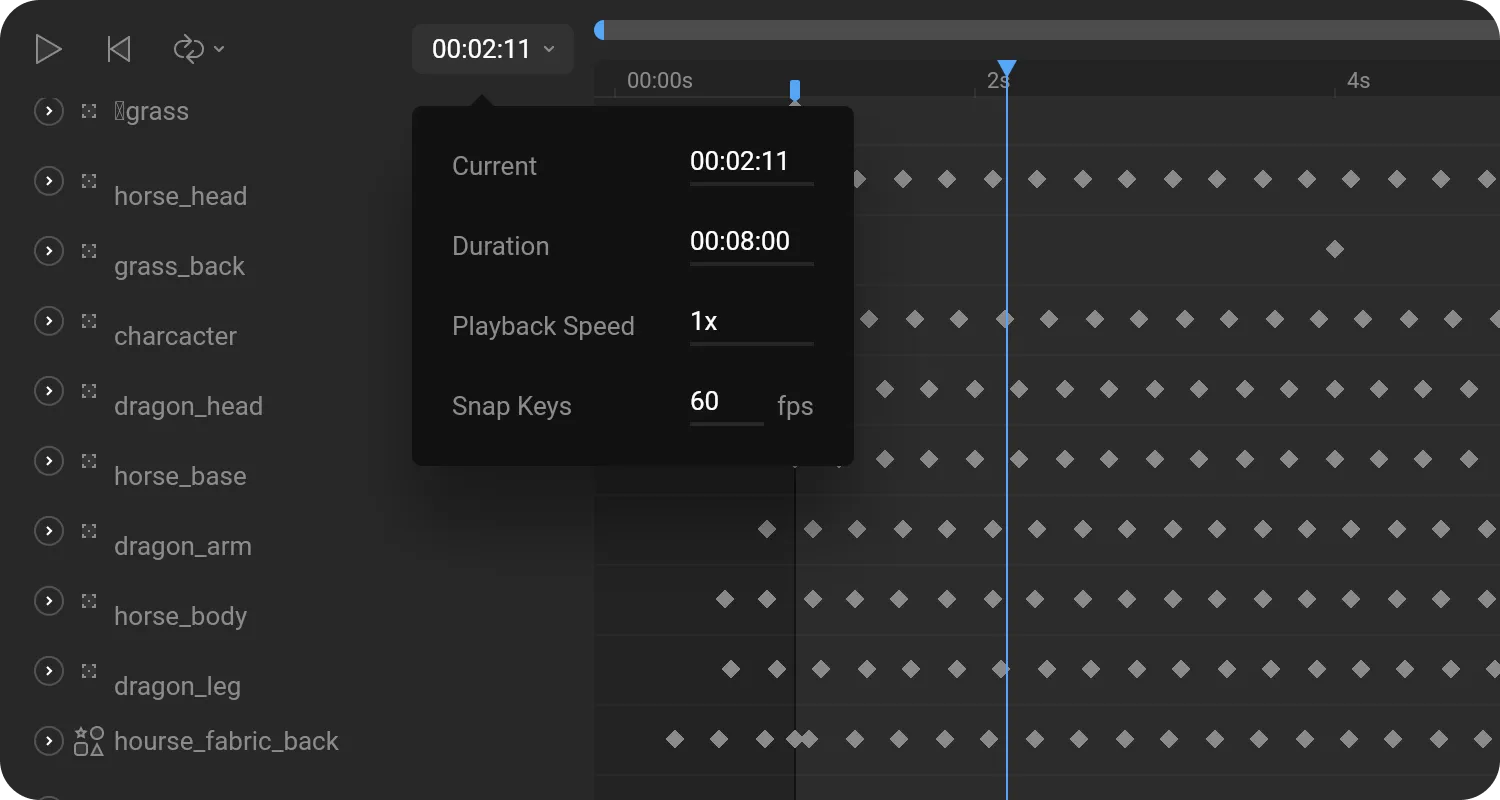 **Current:** The current position of the playhead.
**Duration:** The total length of the timeline.
**Playback Speed:** The speed at which the animation should play. The default speed is 1x. Negative values cause the animation to play backward.
**Snap Keys:** The interval at which keys can be placed on the Timeline. By default, keys can be set at a subdivision of 60 for each second.
## Navigating the Timeline
**Scroll and Zoom:** Use the horizontal scrollbar at the top of the Timeline (with two grabbers on each side) to scroll and resize the Timeline's zoom level.
**Pan:** You can also use the same pan shortcuts as the stage to pan the Timeline (right-click and drag, or hold the spacebar and drag).
**Current:** The current position of the playhead.
**Duration:** The total length of the timeline.
**Playback Speed:** The speed at which the animation should play. The default speed is 1x. Negative values cause the animation to play backward.
**Snap Keys:** The interval at which keys can be placed on the Timeline. By default, keys can be set at a subdivision of 60 for each second.
## Navigating the Timeline
**Scroll and Zoom:** Use the horizontal scrollbar at the top of the Timeline (with two grabbers on each side) to scroll and resize the Timeline's zoom level.
**Pan:** You can also use the same pan shortcuts as the stage to pan the Timeline (right-click and drag, or hold the spacebar and drag).