> ## Documentation Index
> Fetch the complete documentation index at: https://rive.app/docs/llms.txt
> Use this file to discover all available pages before exploring further.
# Shapes and Paths Overview
> Rive allows you to create, edit, and animate vector graphics using either procedural or custom shapes. These graphics combine shape and path layers to define them, which Rive exposes to give you greater flexibility and control with your designs and animations.
export const YouTube = ({id, timestamp}) => {
const videoSrc = timestamp ? `https://www.youtube.com/embed/${id}?start=${timestamp}` : `https://www.youtube.com/embed/${id}`;
return ;
};
To learn more about Shape and Path layers, watch our video on Shapes and Paths, or read more below.
## Shape layer
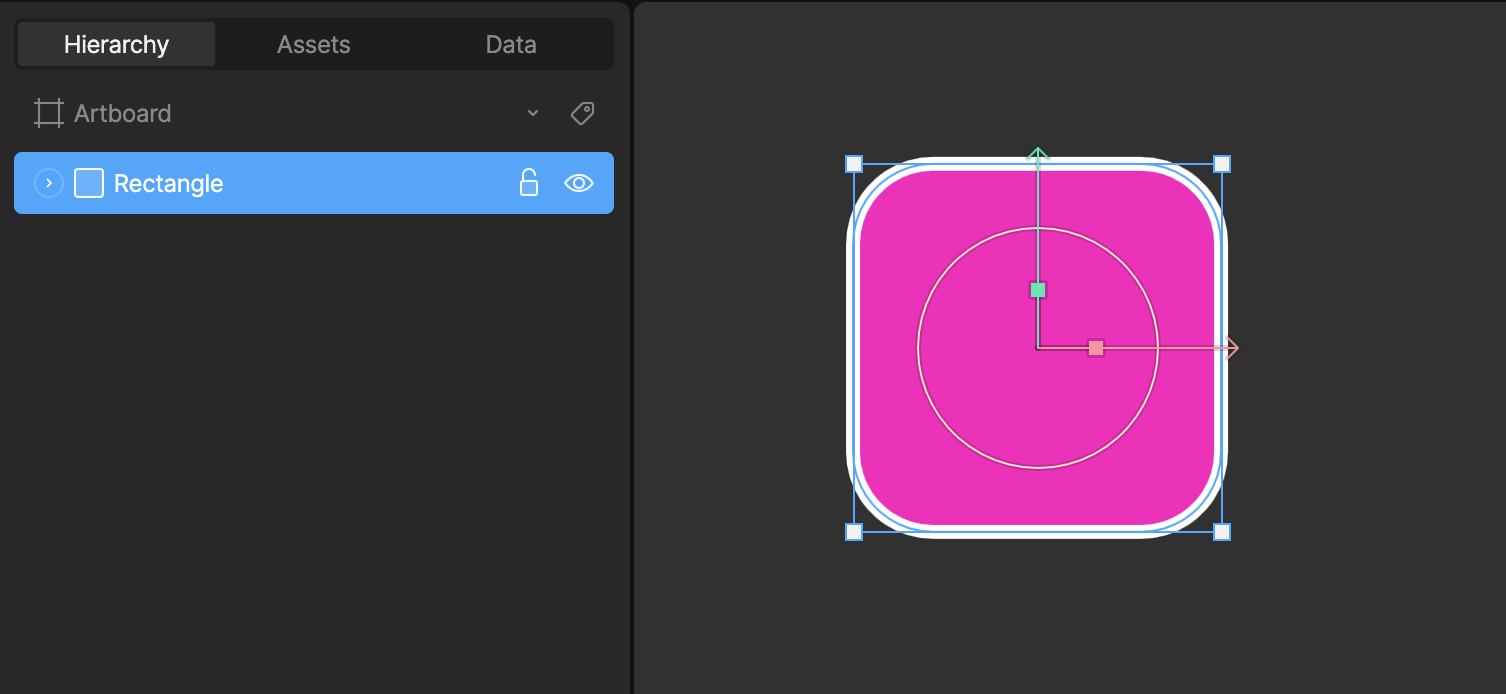 Vectors in Rive are rendered on shape layers. Shape layers define the style of the shape by allowing you to customize the fill and stroke.\`
 ## Path layer
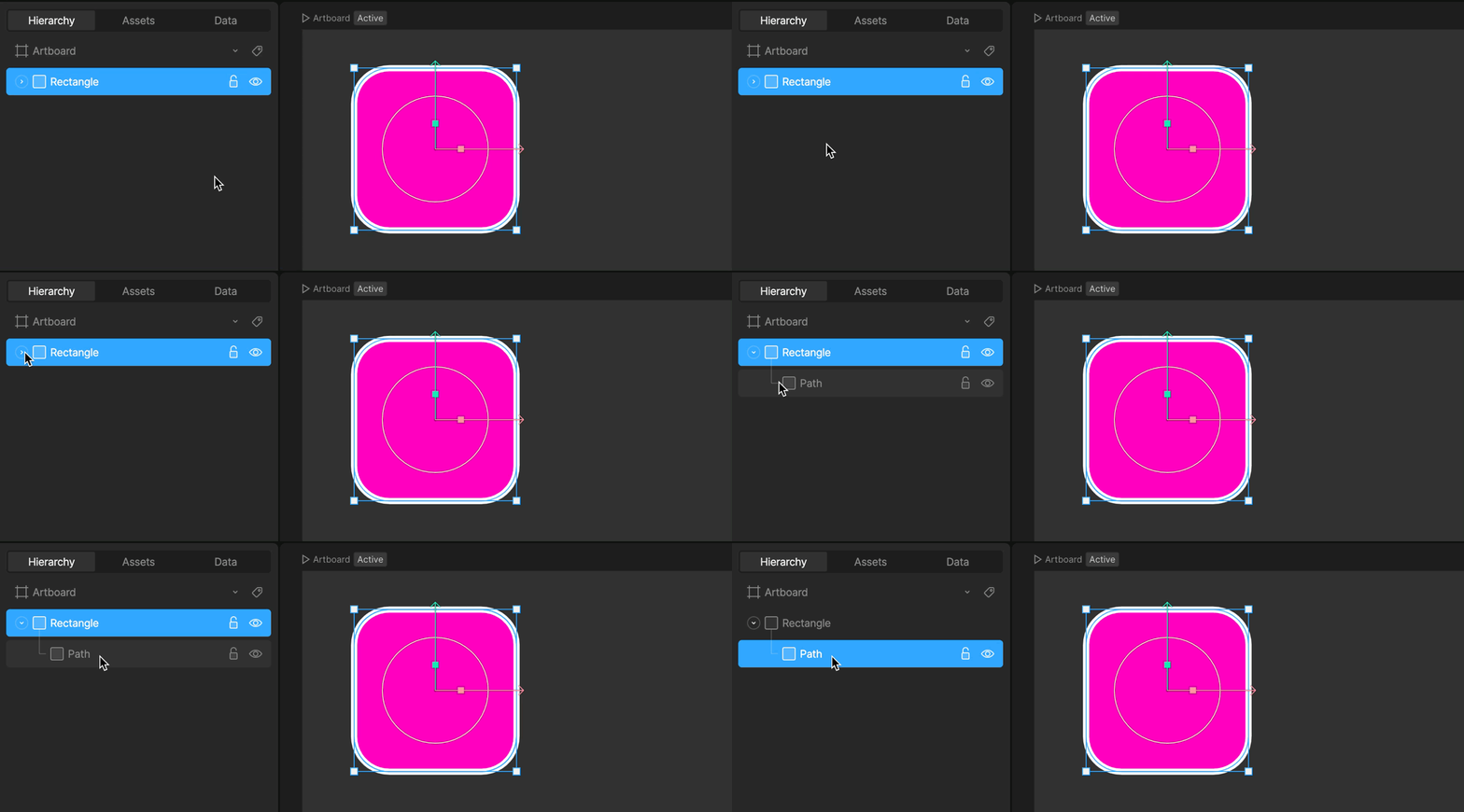 The actual shape of a vector is defined by a path (or multiple paths). Expanding a shape layer in Rive will reveal the paths it's using.
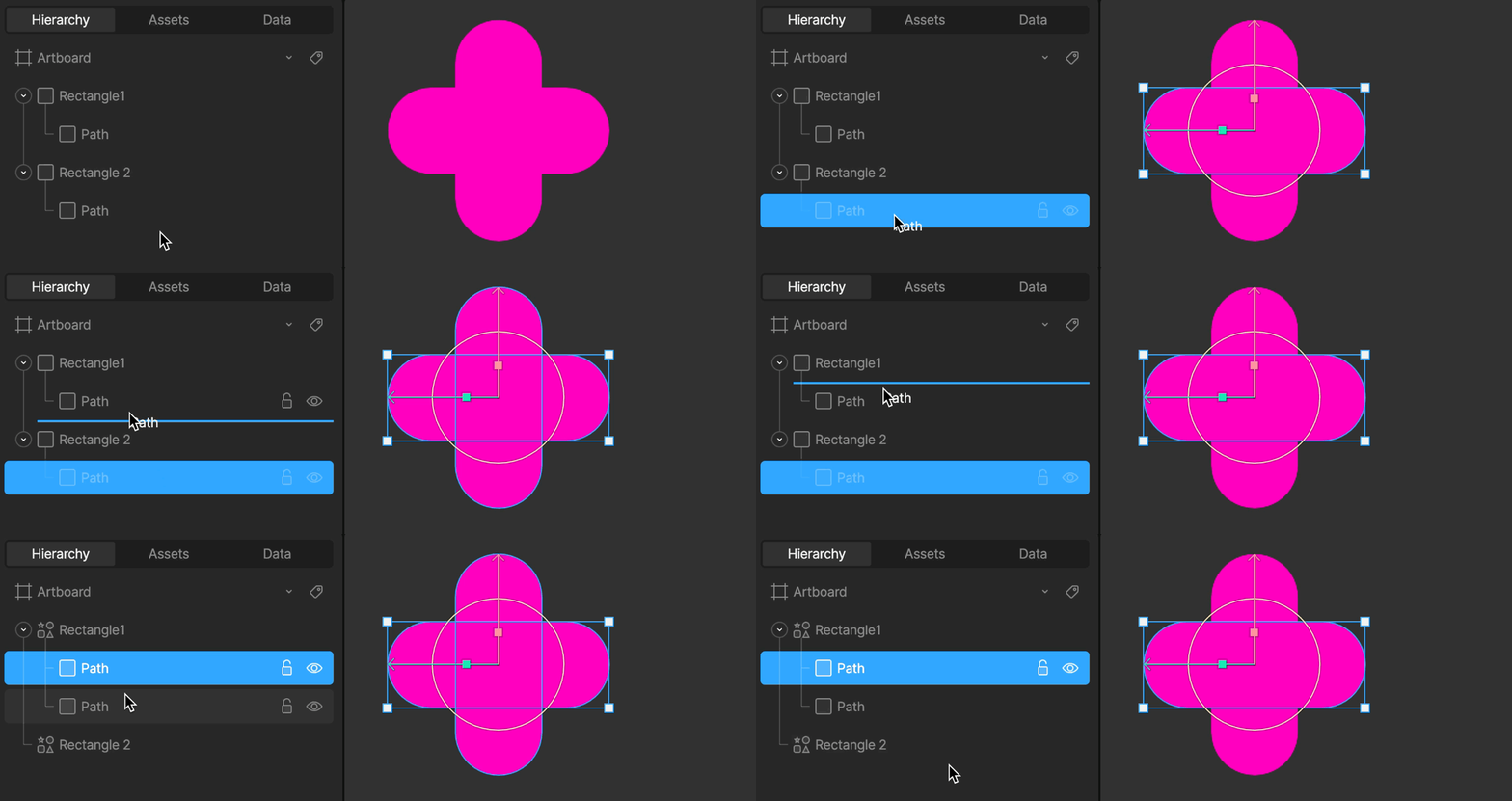 You can add new paths to any shape by dragging and dropping an existing path onto the desired shape layer.
### Path layer properties
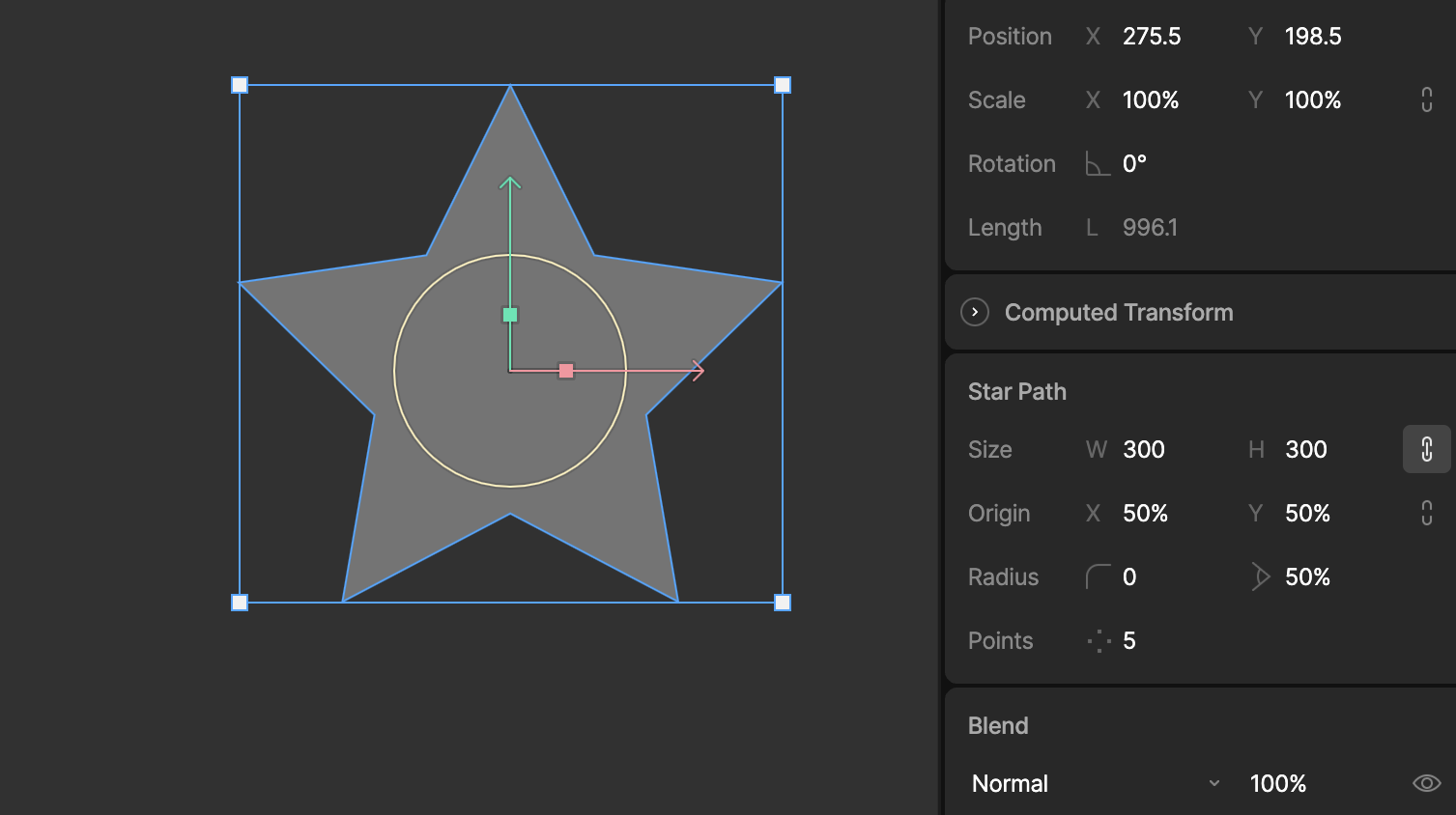
Path layers display properties that to the type of path. Learn more about [Procedural Shapes](/editor/fundamentals/procedural-shapes).
You can add new paths to any shape by dragging and dropping an existing path onto the desired shape layer.
### Path layer properties
Path layers display properties that to the type of path. Learn more about [Procedural Shapes](/editor/fundamentals/procedural-shapes).
 ## Enter and Esc shortcuts
Use the `Enter` key to quickly navigate down the Hierarchy. If you have a shape selected, this allows you to select the child path layer quickly.
Use the `Esc` key to quickly navigate up the Hierarchy. If you have a path selected, this allows you to select the parent shape layer quickly.
## Enter and Esc shortcuts
Use the `Enter` key to quickly navigate down the Hierarchy. If you have a shape selected, this allows you to select the child path layer quickly.
Use the `Esc` key to quickly navigate up the Hierarchy. If you have a path selected, this allows you to select the parent shape layer quickly.