

Text
Information on designing and animating Text
Read/update Text Runs at runtime
If you intend to update a text run at runtime it’s important to manually enter a unique name for the run in the editor: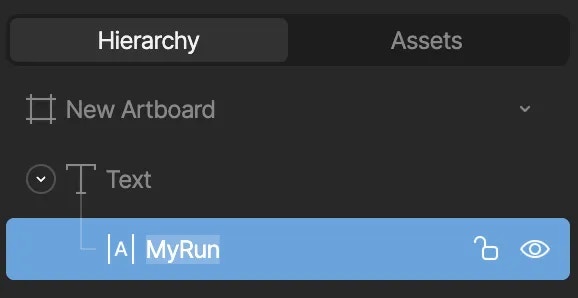
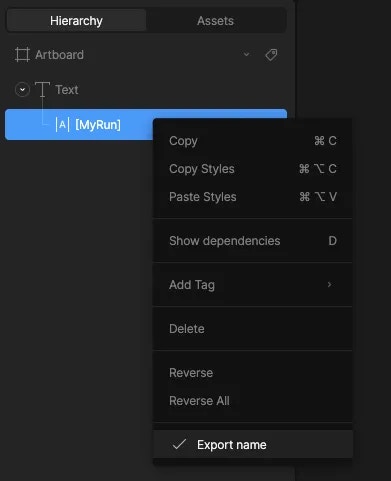
Text runs can also be updated on components at runtime, see Read/Update
Nested Text Runs at Runtime below.
Examples
Reading text
To read a given text run text value at any given time, reference the.getTextRunValue() API on the rive instance returned from useRive:
undefined if the text run could not be queried.
Setting text
To set a given text run value at any given time, reference the.setTextRunValue() API on the rive instance returned from useRive:
textValue, with a String value that you want to set the new text value for if the text run can be successfully queried on the active artboard.
Example usage
Read/update nested Text Runs at runtime
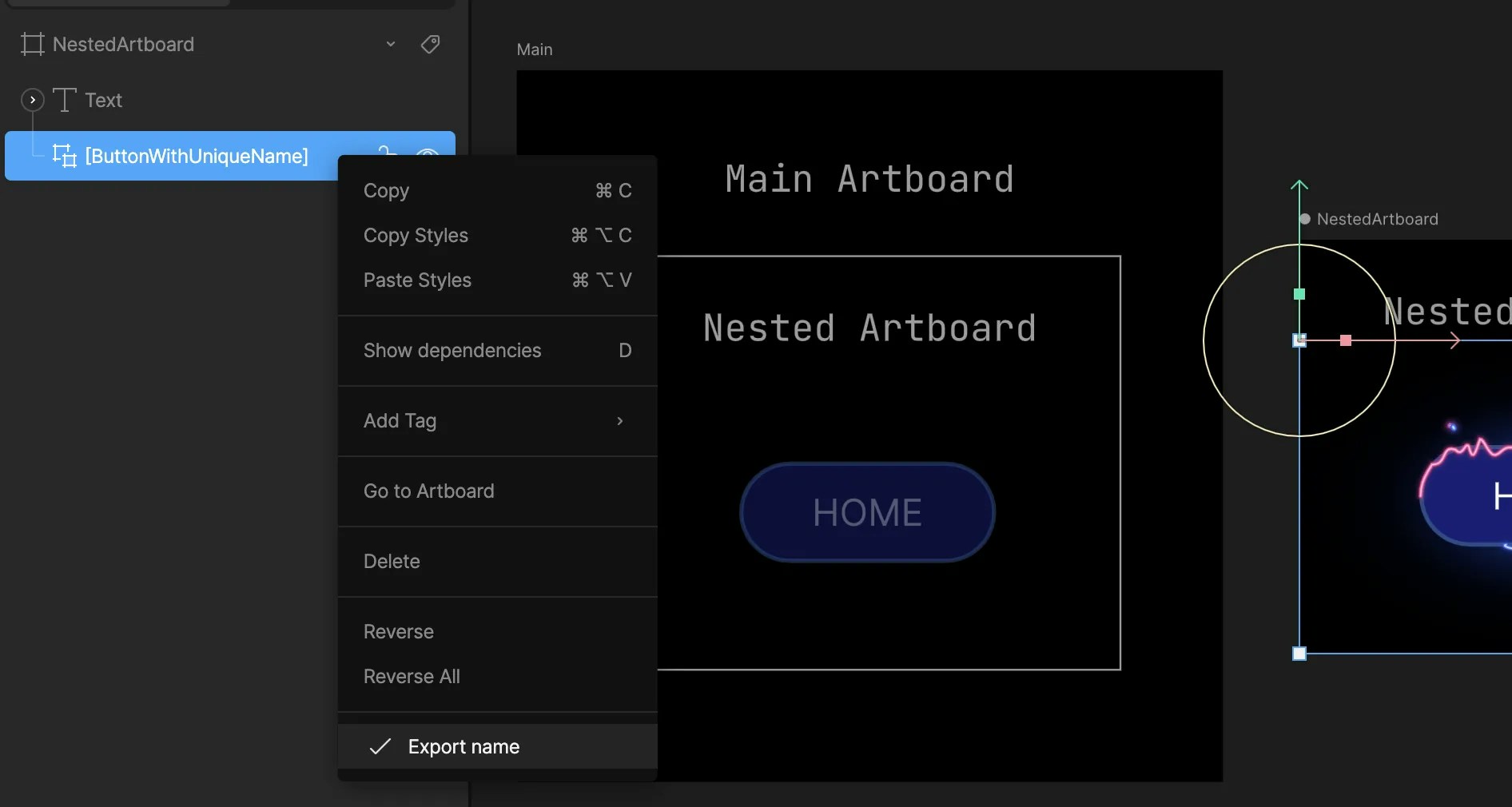
It’s possible to set nested text runs at runtime—text that is not on the main artboard but on a Component. To set a nested text run, you’ll need to take note of the path where the input exists at an artboard level. For example, to get/set the text run named button_text on the Button artboard, you need to provide the correct path.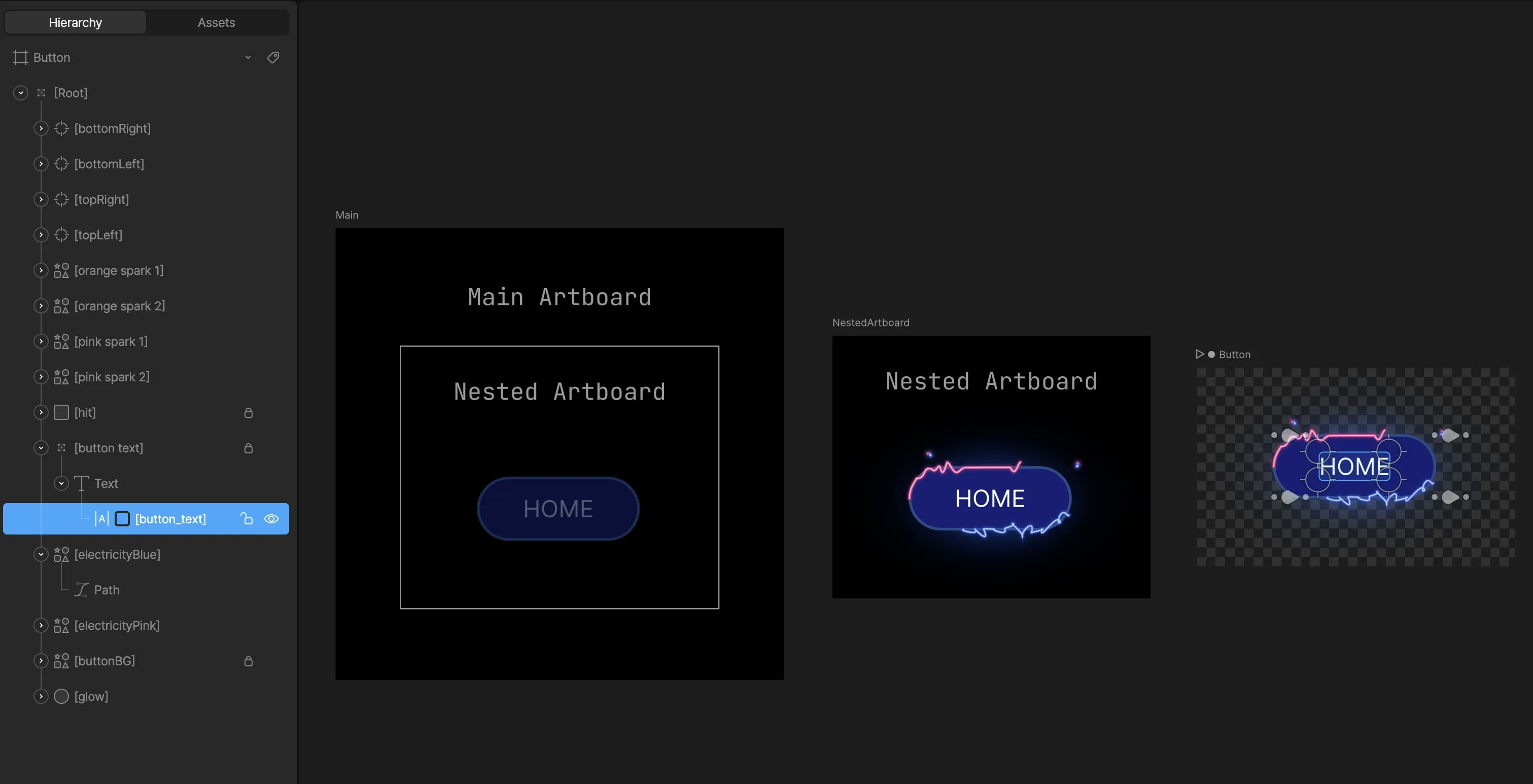
- Main -> NestedArtboard -> Button
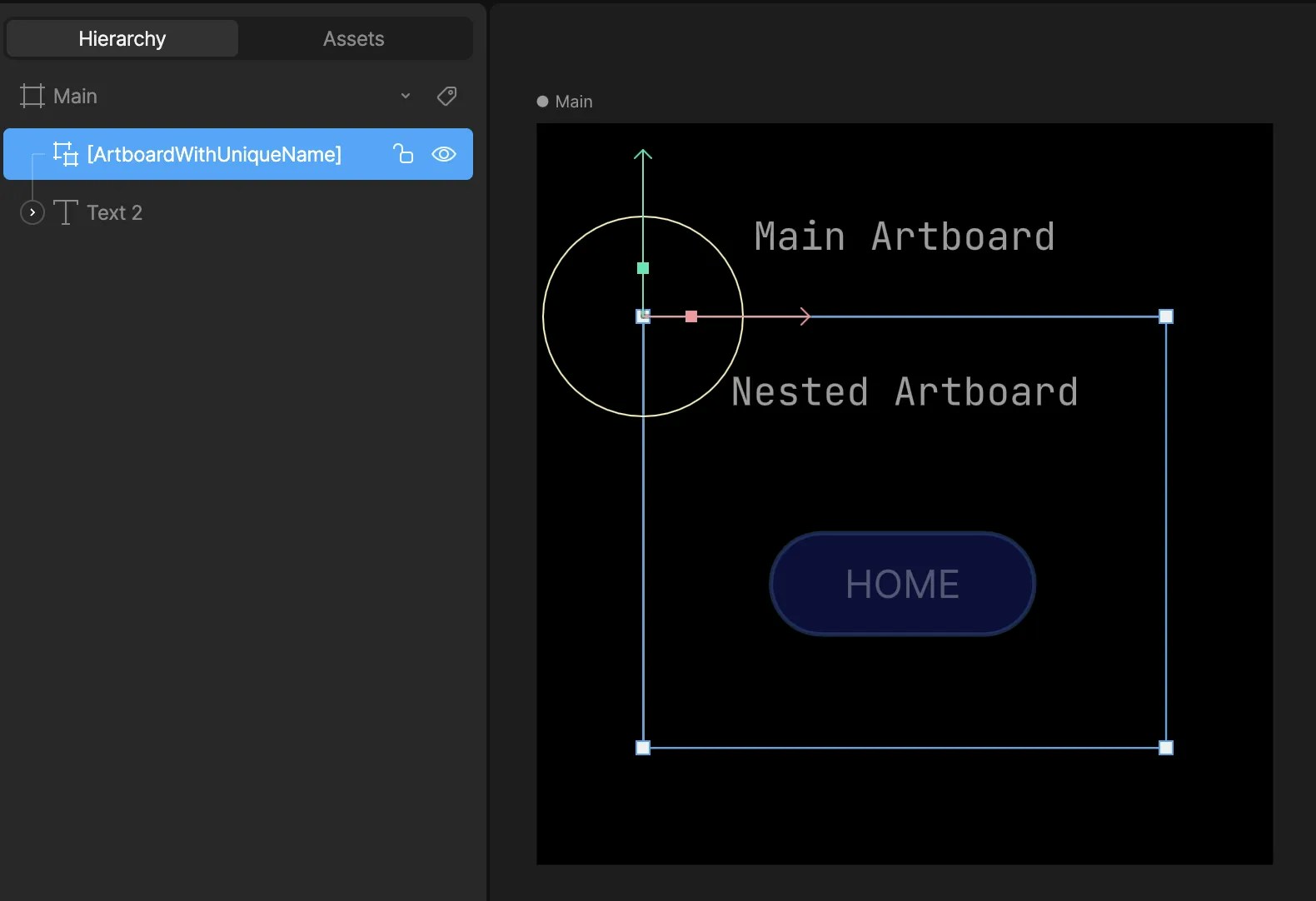
- ArtboardWithUniqueName -> ButtonWithUniqueName
ArtboardWithUniqueName/ButtonWithUniqueName
Be sure to mark the components and text runs as exported.
Examples
Reading text
To read a given text run text value at any given time, reference the.getTextRunValue() API on the rive instance returned from useRive:
undefined if the text run could not be queried.
Setting text
To set a given text run value at any given time, reference the.setTextRunValue() API on the rive instance returned from useRive:
textValue, with a String value that you want to set the new text value for if the text run can be successfully queried on the active artboard.