Selecting objects
Click an object to select it. To select multiple objects, drag over them to create a marquee selection. HoldShift while clicking or dragging to add objects to the current selection or remove selected objects.
Select objects inside groups
To select an object inside a group, double-click the object. This moves you one level down in the hierarchy, so you can select objects inside that group.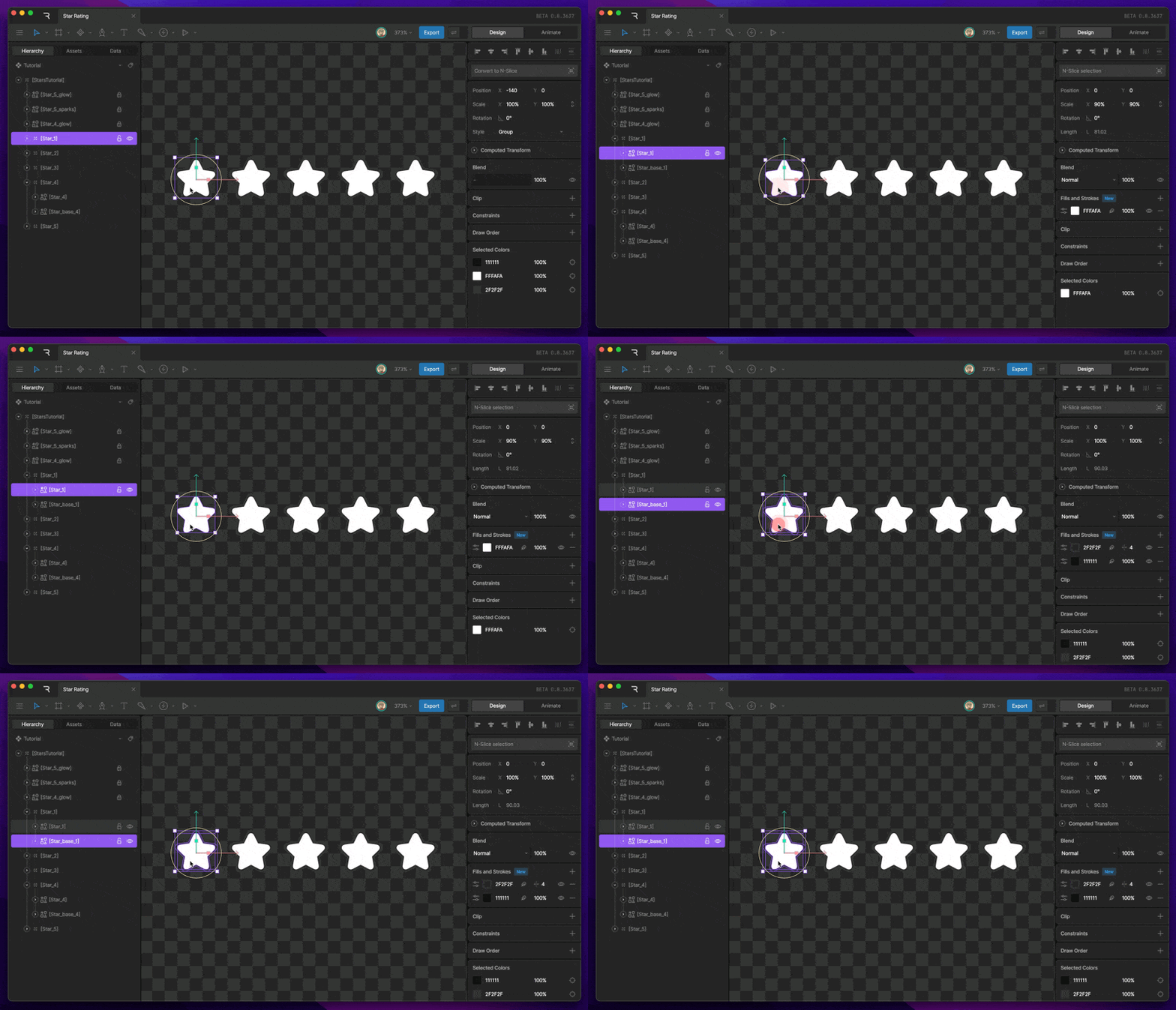
Deep select
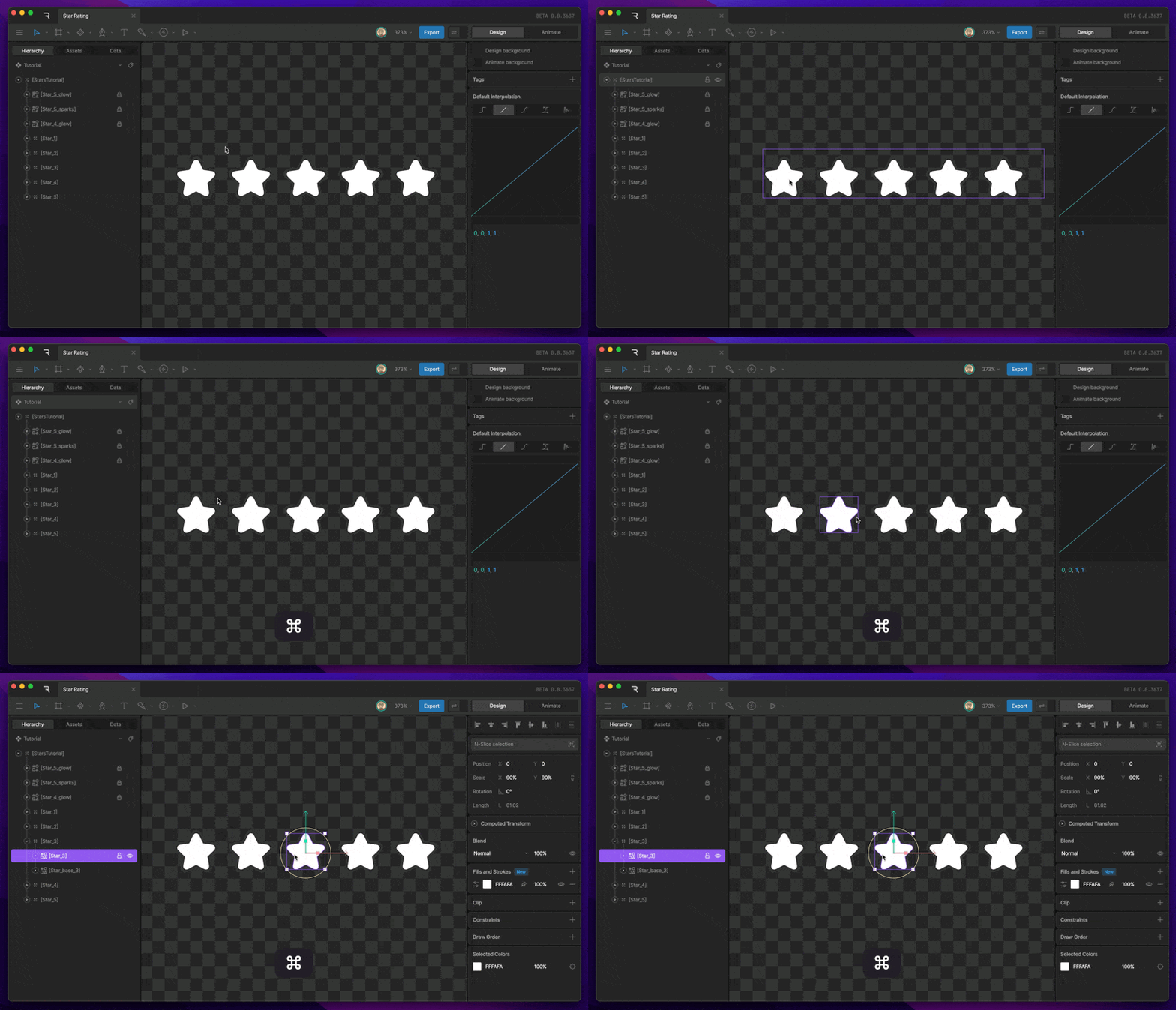
To select an object inside nested groups, hold⌘ on macOS or Ctrl on Windows, then click the object.
Deep select lets you select an object directly, even when it is inside multiple groups.
Targets are directly selectable on the stage. You don’t need to use Deep Select to select them.
Select behind
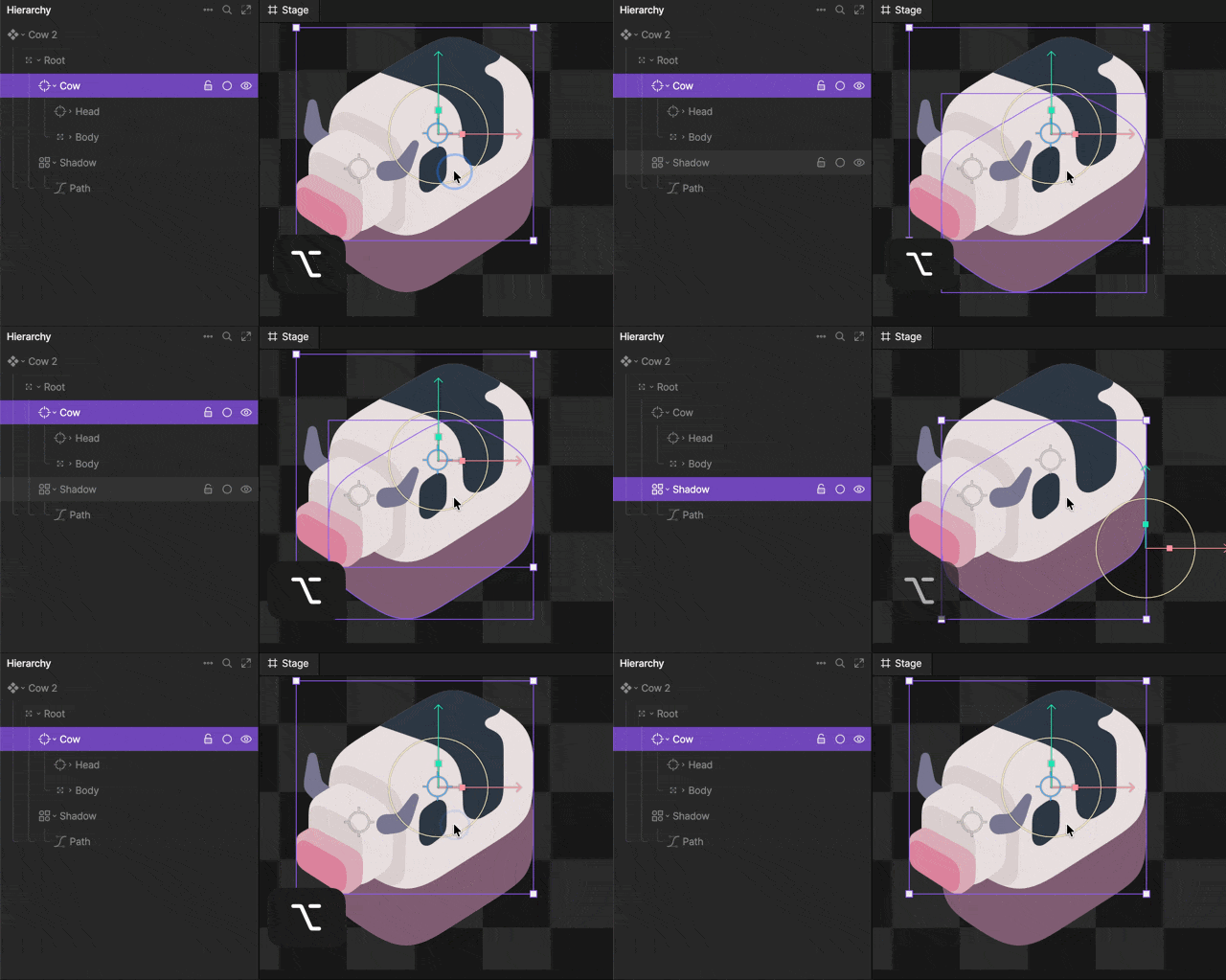
When you hover over an object on the stage, Rive outlines the object that will be selected if you click. If multiple objects overlap, pressAlt to cycle through objects under the cursor. When the object you want is outlined, click to select it.
Moving up and down the Hierarchy
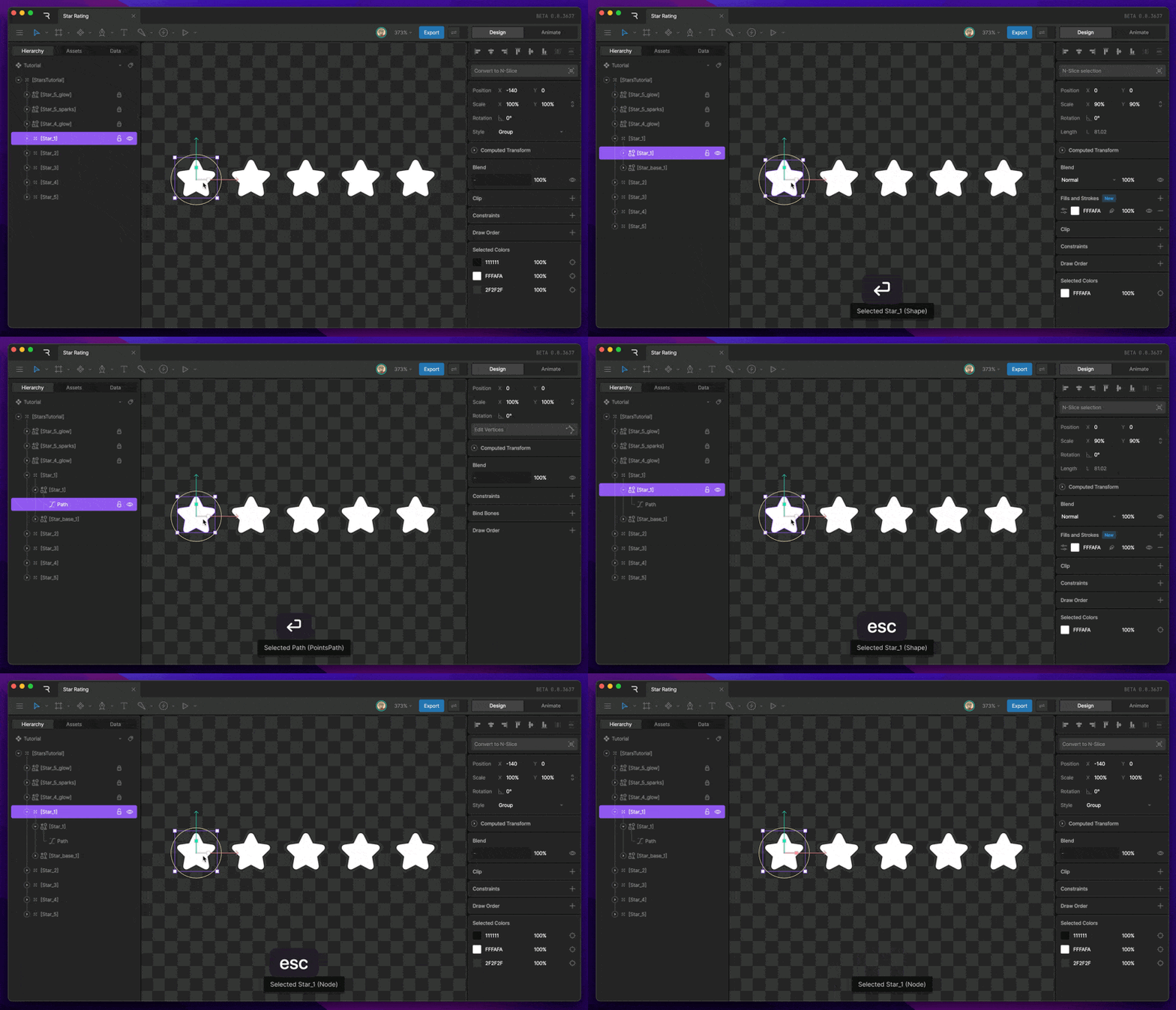
UseEnter and Esc to move through nested objects in the hierarchy.
- Press
Enterto move down into the selected group and select its first child. - Press
Escto move up and select the parent of the current selection.
Navigating the Stage
Pan
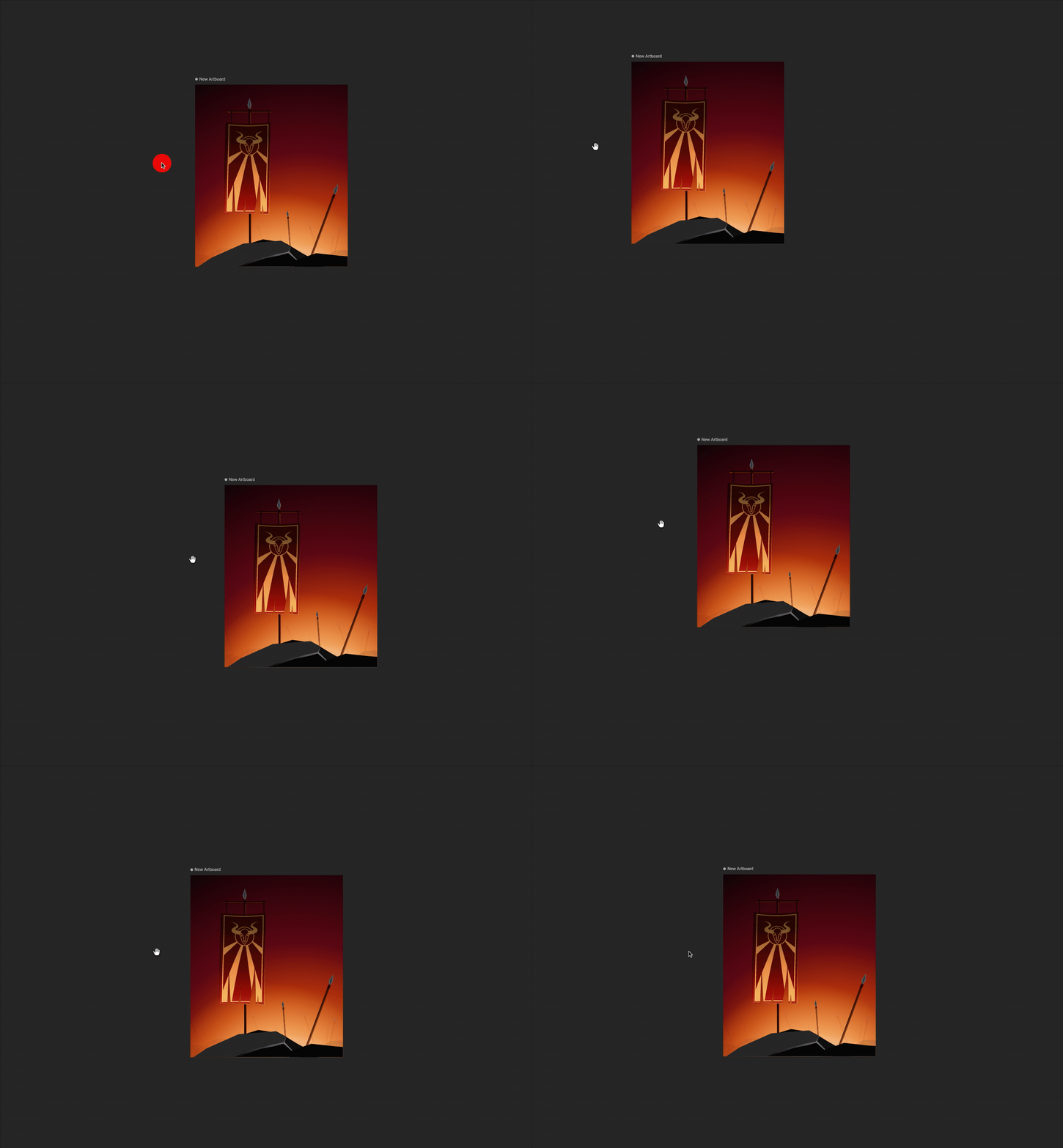
To pan the stage, right-click and drag. You can also holdSpacebar to temporarily switch to the Pan tool, then click and drag to move around the stage.
If you’re using a trackpad, scroll left or right to pan horizontally.
Zoom
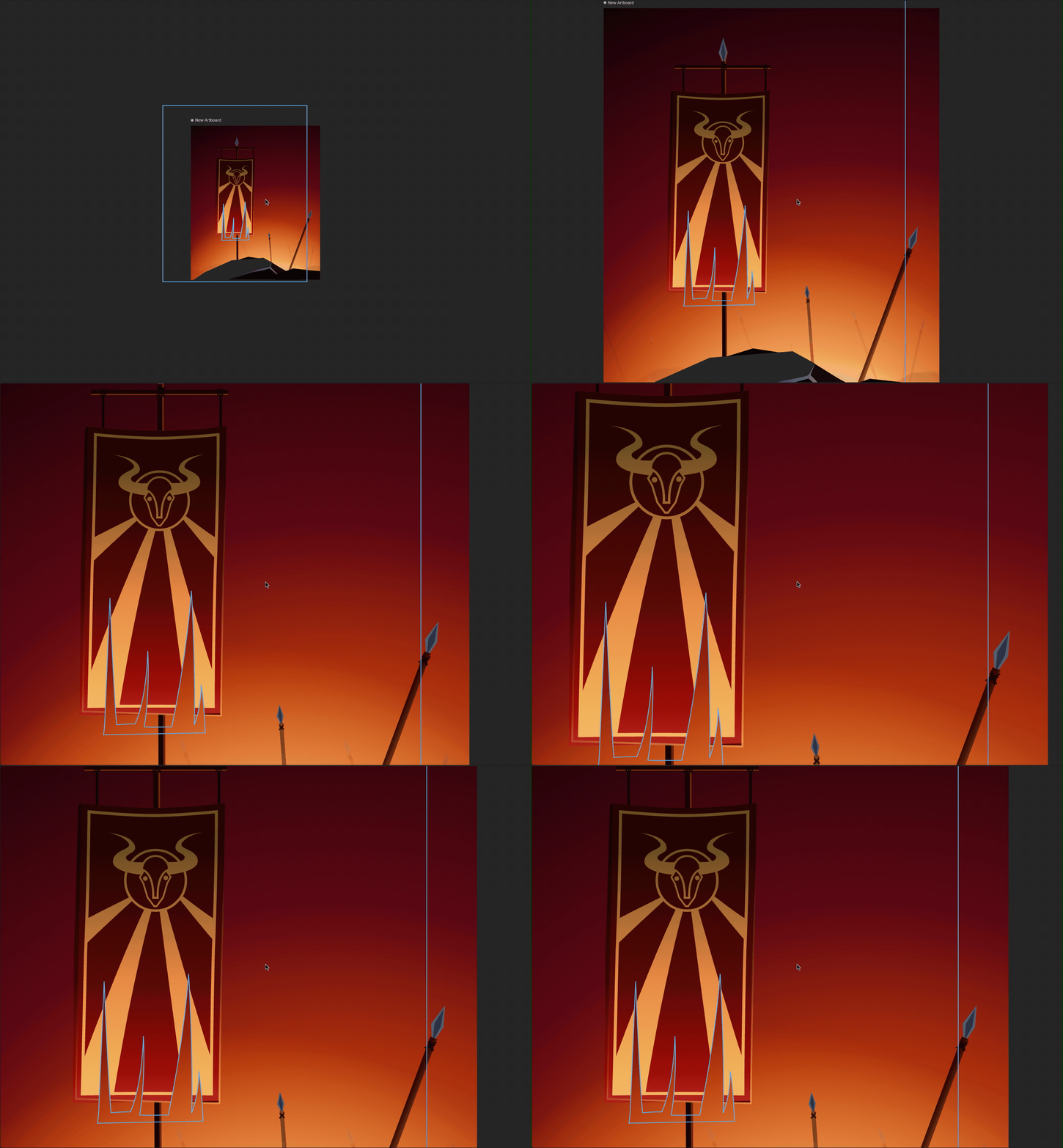
To zoom in or out, place your cursor over the stage, then hold⌘ on macOS or Ctrl on Windows and scroll.
- Press
+to zoom in. - Press
-to zoom out. - Press
⌘+0on macOS orCtrl+0on Windows to return to 100%.
Fit selection
PressF to fit the current selection in the viewable stage area.