

G shortcut. Click anywhere in an artboard to add a new group. Now drag and drop objects into the group in the Hierarchy.
You can also wrap a selection of shapes into a group with ⌘+G in macOS or Ctrl+G in Windows.
Unwrap a group with ⌘+Shift+G in macOS or Ctrl+Shift +G in Windows.
Group style
The Style property of a group can be set to Group or Target.Group
Group is the default behavior, which behaves as described in the Selection and Navigation.Target
The Target option draws an icon on the stage that is visible regardless of whether the group has children (usually a group only displays an icon if it is empty). Target visibility can be toggled on or off in the View Options menu. Targets are directly selectable on the stage. You don’t need to use Deep Select to select them.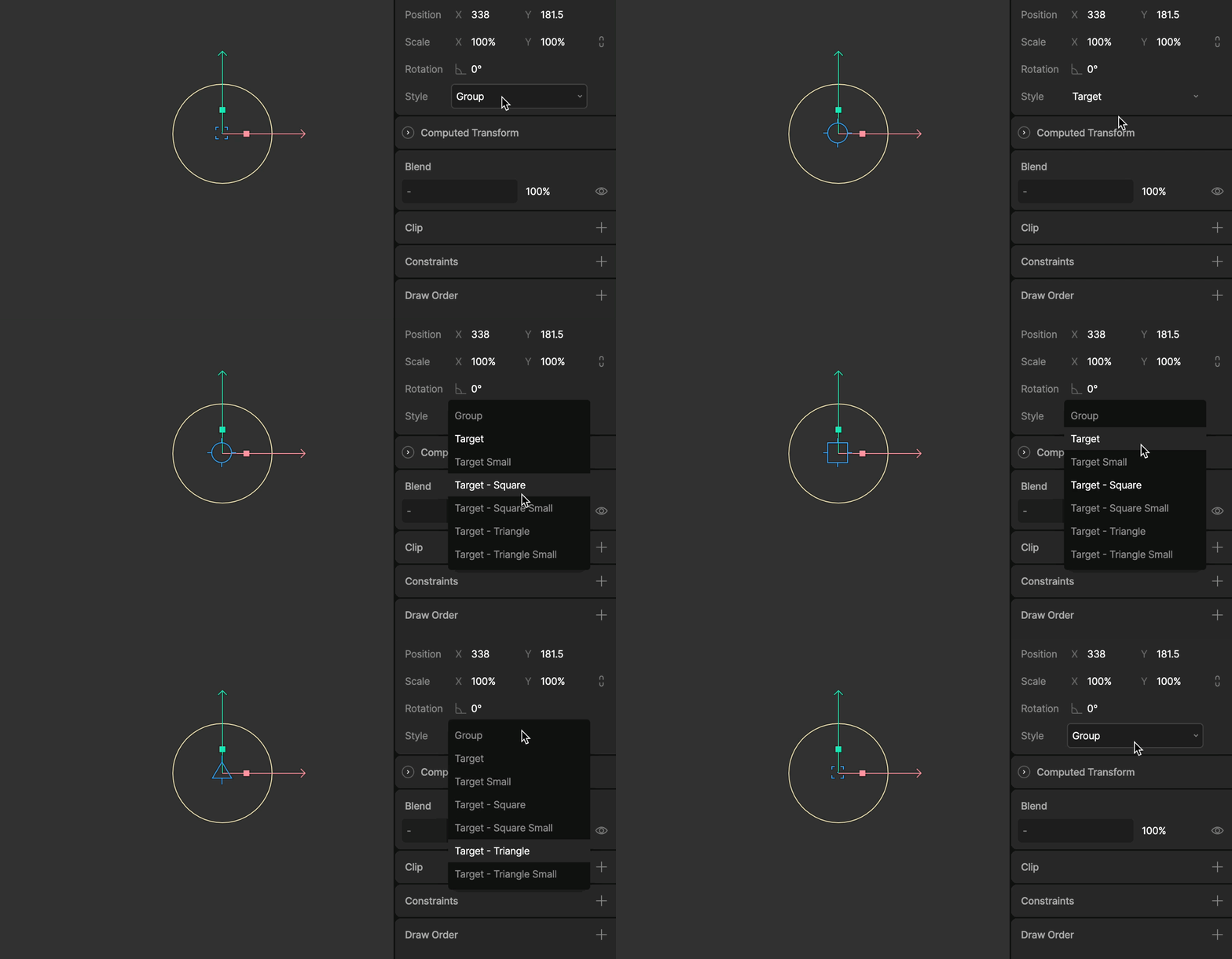
If targets aren’t visible on the stage, open the View Options menu and make sure Targets is enabled.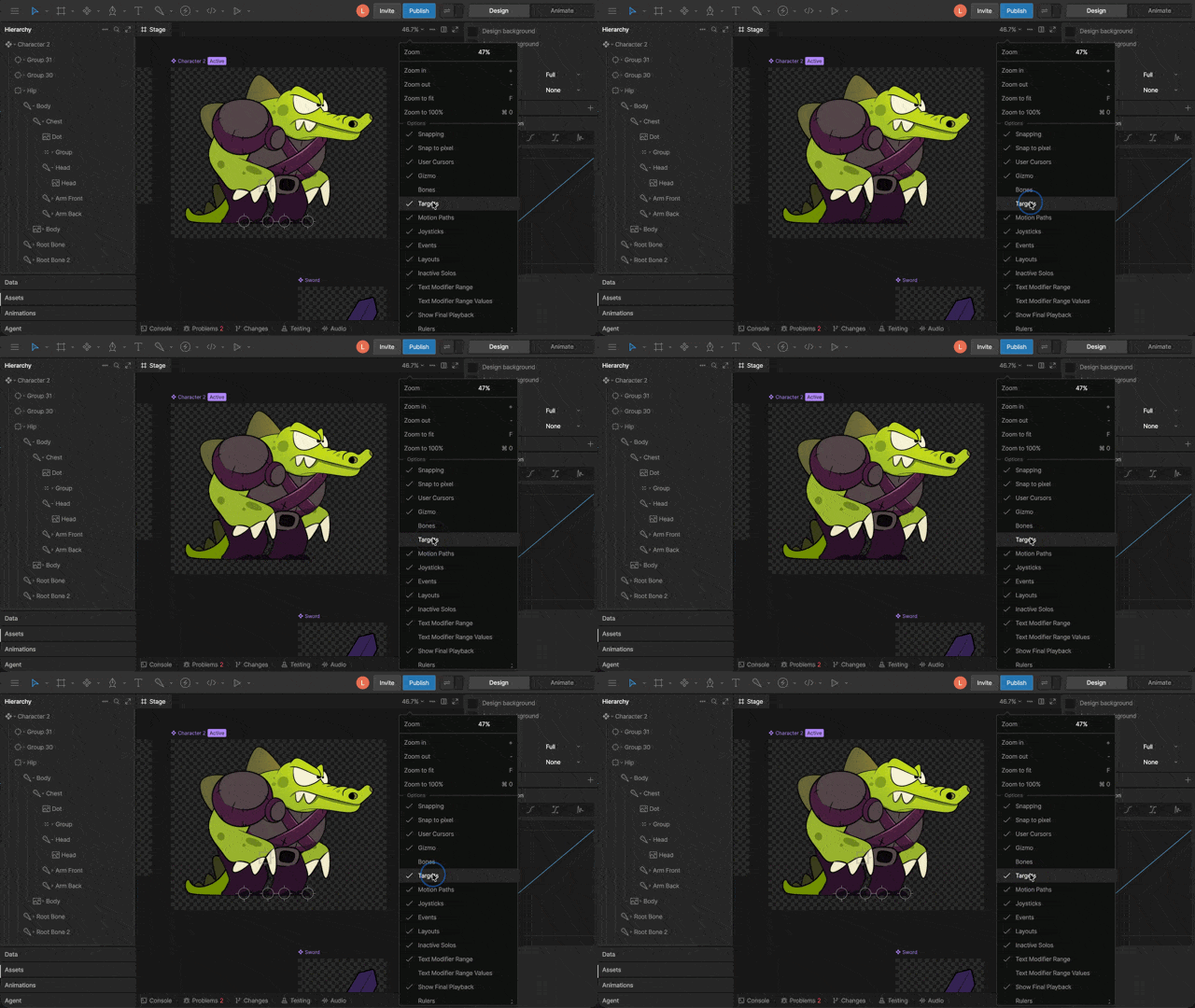
Constraints
Constraints are a way to control the properties of an object through another target object. Some constraints can set limits on these properties (and their hierarchical relationships), while others can copy properties from one object to another.